
Sportzfy for TV
Live Cricket & Football on a Bigger Screen
Watch available live sports on your compatible Android TV, Google TV or Android-based FireStick with Sportzfy App. Browse daily matches and sports channels using your remote, choose your preferred video quality and follow up to four events on one screen. Use the same APK as on mobile, with TV Mode available for the bigger screen.
Downloader Code: 6317031
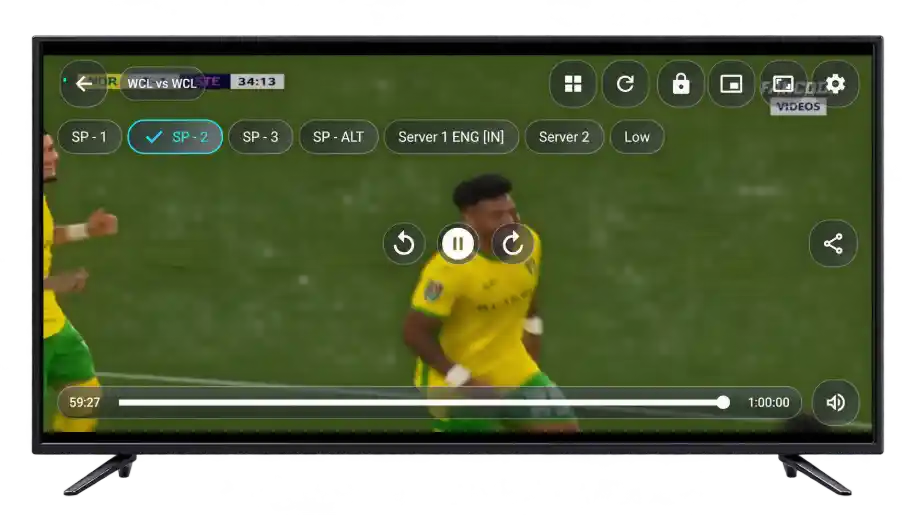
Take the Match From Your Phone to Your TV
A close finish is better when everyone can see the action. Sportzfy for TV lets you watch with family or friends without gathering around a phone. The larger screen also gives each stream more room when you follow several matches with Multi Player.
You use the same APK as on Android mobile, with TV Mode and remote controls for browsing from your sofa. Picture quality still depends on the stream, the selected quality setting and your internet connection.
Sportzfy on Mobile vs TV
Sportzfy uses the same APK on Android phones and supported TV devices. Mobile suits personal viewing wherever you are, while a TV gives you more screen space and makes watching together easier.
| Feature | On Mobile | On TV |
|---|---|---|
| APK File | Same Sportzfy APK | Same Sportzfy APK |
| Screen | Close-up, personal viewing | Bigger picture for watching from a distance |
| Controls | Touchscreen | TV remote |
| TV Mode | Available | Available |
| Multi Player | Up to four events on a smaller display | Up to four events with more room for each stream |
| Portability | Easy to carry and watch on the move | Mainly used in one place |
| Watching Together | Limited screen space | Easier to watch with family or friends |
| Picture Quality | Depends on the source, settings and connection | Also depends on the source, settings and connection |
A bigger TV does not automatically make a stream HD or 4K. The source quality, selected player setting and internet connection still determine how clear the picture looks.
Will Sportzfy Work on Your TV?
Check your TV’s operating system before downloading. A Smart TV label alone doesn’t mean it can install the Sportzfy APK . Compatible Android-based devices can support APK installation, while Samsung Tizen and LG webOS use different app formats.
| Device or System | Can You Install the APK? |
|---|---|
| Android TV | Yes, on compatible devices that allow APK installation |
| Google TV | Yes, on compatible devices that allow APK installation |
| FireStick / Fire TV | Yes, on compatible Android-based models |
| Samsung Tizen | No direct Android APK installation |
| LG webOS | No direct Android APK installation |
| Other Smart TVs | Check the operating system and APK support first |
You can usually find the operating system and model under Settings > About or Device Information. Menu names vary by device.
If your TV cannot install Android apps, a compatible Android TV box or Android-based FireStick connected through HDMI can provide that support. Sportzfy installs on the connected device, while your TV displays the picture.
Before You Install
Have your TV remote ready, connect the device to the internet and check that there is enough free storage for the APK and installed app. If Sportzfy is already installed, compare its version with the available release before downloading again.
Use a compatible app variant when updating. Review any permissions or security messages shown during installation and keep available device protections enabled.
Install Sportzfy With Downloader Code 6317031
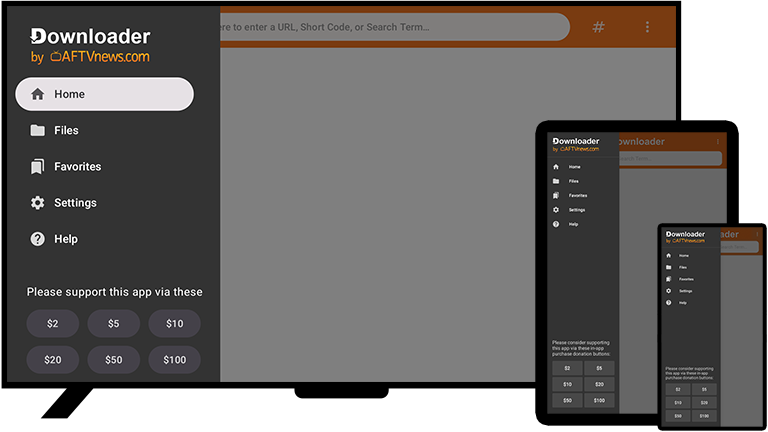
The Sportzfy Downloader Code saves you from typing a long web address with your remote. On a supported Android TV, Google TV or FireStick, use Downloader by AFTVnews to open the download page and get the APK.
-
Step 1: Open Downloader
Find Downloader by AFTVnews in your device’s app store and install it if available. Open the app and follow any initial prompts.
-
Step 2: Enter Code 6317031
Select the URL field, type 6317031 and choose Go. Wait for the linked page to open. If the code does not work, enter https://sportzfy.to/download/ directly.
-
Step 3: Download the Sportzfy APK
On the page, select the Download Sportzfy APK button. Wait until the file finishes downloading before starting installation.
-
Step 4: Allow APK Installation
If your device asks for permission, open Settings and allow Downloader to install apps. Depending on your device, this may be called Install unknown apps or Allow from this source. Return to Downloader after granting permission.
-
Step 5: Install and Open Sportzfy
Select Install and review any security messages. Once installation finishes, choose Open. Let Sportzfy load with an internet connection, select TV Mode if needed and browse the available events.
After installation, you can delete the downloaded APK to free up space and turn off Downloader’s installation permission. Deleting the APK file will not uninstall Sportzfy.
Other Ways to Install Sportzfy on TV
If Downloader isn’t available, transfer the APK from your phone, use a USB drive or download it through a compatible TV browser. Choose a method your device supports.
Transfer the APK From Your Phone
Download the APK to your Android phone, then use a file-transfer app supported by both your phone and TV. Send the file, open it through the TV’s file manager and allow installation for that app if prompted. Select Install to continue.
Install From a USB Drive
Copy the APK to a USB drive and connect it to your compatible Android TV or TV box. Open the drive in a file manager, select Sportzfy and follow the prompts. The device must support reading the drive and installing Android APKs.
Download Through a TV Browser
If your TV browser supports downloads, visit sportzfy.to/download/ and download the APK. Open the completed file from Downloads or a file manager, allow installation for the app opening it and follow the prompts.
These methods still require a compatible Android-based device. Transferring an APK to Samsung Tizen or LG webOS does not make it installable. For installation steps across devices, see our Sportzfy installation guide.
Your First Match on Sportzfy
Once installed, browse events and channels with your remote. Choose a match, open an available link and adjust the player settings to suit how you want to watch.
Choose TV Mode
Use TV Mode for the layout suited to your television. It is also available on mobile, while a larger screen gives menus and match listings more room.
Browse Today’s Events
Use All, Live, Upcoming and Recent to find a match in progress, check upcoming fixtures or browse earlier listings. Move through the options with your remote and press select to open an event.
Choose a Channel or Match Link
Pick a live event and select an available stream. You can also browse channel categories to follow a channel’s coverage. If one link will not play, try another available option.
Use the Player Controls
Open the player controls with your remote to access video quality, available audio tracks and other settings. Use Back to return to the previous screen when you want to browse another event.
Watch Up to Four Events on One Screen
When matches overlap, Sportzfy Multi Player lets you keep up to four events in view. A television gives each stream more space than a phone, making it easier to follow cricket alongside football or keep an eye on several games.
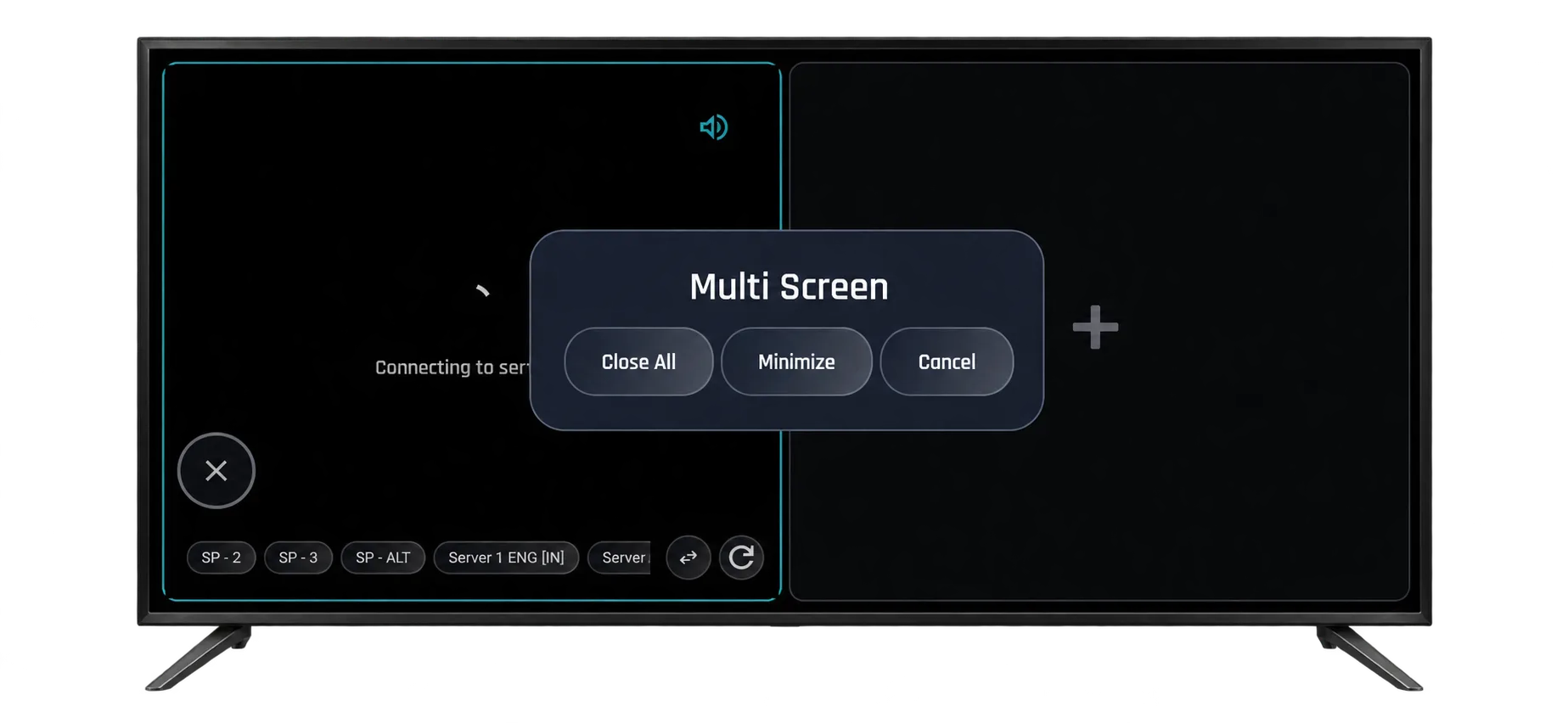
Open Multi Player, choose the events and select their available streams. Manage your selection through the player’s on-screen controls.
Each stream uses bandwidth and device resources. If playback buffers, try fewer events or lower the video quality. Four-event viewing needs a connection and TV device capable of handling the extra load.
Set the Picture and Sound for Your Connection
A bigger screen makes picture quality more noticeable, but the highest setting will not always suit your internet. Adjust the available video and audio options while watching.
Choose a Suitable Video Quality
Select a quality level that plays steadily. Higher quality can provide a clearer picture but uses more data. If playback keeps stopping, try a lower setting. The available choices depend on the stream.
Use Force Low Quality
Turn on Force Low Quality when your connection struggles with higher-quality playback. It may reduce buffering, but it cannot fix an unavailable stream or a connection that keeps dropping.
Select an Audio Track
Some streams offer multiple Audio Tracks, including different commentary languages. Choose from the player settings. If the source supplies one track, there is no additional language to select.
Use Auto Server Switching
If a link fails, Auto Server Switching tries another available server. It can reduce manual switching, but still needs a working alternative link and an internet connection.
For a closer look at the app’s player controls and viewing options, read the Sportzfy features guide.
More to Watch Between Live Matches
Browse sports channels and available highlights between matches. You may find pre-match discussions, post-match analysis or key moments from games you missed.
Categories for Bangladeshi, Pakistani, Indian and Nepali channels help you explore beyond daily event listings. Choose a channel’s ongoing coverage or a short highlight when you only have time for a quick catch-up.
Keep Sportzfy Updated on Your TV
You can usually install a compatible update over the existing app without removing it first. This normally keeps your saved settings.
- Close Sportzfy and open Downloader.
- Enter 6317031 to visit the download page.
- Compare the listed version with the one installed on your TV.
- If a newer compatible version is available, download its APK.
- Open the file and select Install or Update.
- Launch Sportzfy when installation finishes.
If a package conflict appears, check the app variant and signing source before uninstalling. Removing the app may erase saved settings. After a successful update, you can delete the downloaded APK to free up storage.
Prefer Watching on Your Computer?
You can also run the Android APK on a Windows PC or Mac through a compatible Android emulator. There is no native Sportzfy desktop app, so check your operating system and emulator requirements first.
Sportzfy Not Working on Your TV?
Check whether the problem affects one stream or the whole app, then try the relevant checks below.
Downloader Code Won’t Open
Check your connection and enter 6317031 again. If it still fails, type https://sportzfy.to/download/ directly in Downloader. A temporary problem with the code or destination page may stop it loading.
APK Won’t Install
Check that the download finished, APK installation is supported and enough storage is available. Allow installation for the app opening the file. If Sportzfy is already installed, check for an update conflict before removing it.
App Stays on the Loading Screen
Close Sportzfy and restart the TV device. Check whether other apps can connect. Try another network or a VPN to check for a network restriction. A VPN will not fix a server outage.
Remote Buttons Aren’t Responding
Test the remote in your device’s main menu. If it works there, reopen Sportzfy and check that TV Mode is selected. Note which button or screen is affected if the issue continues.
Video Buffers or Shows a Black Screen
Try another link. If several streams buffer, lower quality or enable Force Low Quality. In Multi Player, reduce the number of events. A black screen on one link may be an issue with that stream.
Picture Plays Without Sound
Check volume and mute settings on the TV and connected sound system. Try another Audio Track or channel. If other apps also have no sound, check the device’s audio output settings.
Found a broken website link or an unclear instruction? Contact us with the page URL and device model. We handle website content and links; we do not operate Sportzfy’s streaming servers.
Frequently Asked Questions
Is the TV APK different from the mobile APK?
No. Sportzfy uses the same APK on Android phones and supported TV devices. A separate TV download is not required.
Is Sportzfy free to use on TV?
Yes. The app is free to download and use on supported devices. You still need an internet connection, and your provider’s normal charges apply.
Where do I enter Downloader code 6317031?
Enter it in the URL field inside Downloader by AFTVnews and choose Go. The code is not entered inside Sportzfy.
Can I use TV Mode on my phone?
Yes. TV Mode is available on mobile too. On a television, the larger display and remote navigation suit viewing from a distance.
Do I need a mouse or just the remote?
Sportzfy supports TV remote navigation for normal browsing and playback on supported devices. A mouse is not required.
Does a 4K TV make every stream 4K?
No. Picture quality depends on the source, selected quality and connection. A 4K screen cannot turn a lower-resolution stream into native 4K.
Can an Android TV box work with a non-Android TV?
Yes, if your television has a suitable HDMI connection. Sportzfy installs on the compatible TV box, while the television displays its picture and sound.
Can I delete the APK after installing Sportzfy?
Yes. Deleting the downloaded APK removes the installation file without uninstalling the app.
Ready for the Next Match?
Download Sportzfy for your supported TV device to browse live sports, channels and available highlights on a bigger screen. Choose one full-screen match or follow up to four events together with Multi Player.
Download Sportzfy APKDownloader Code: 6317031