
How to Install Sportzfy App
Installing Sportzfy App starts with choosing the right method for your device. Android phones and compatible TV devices use the APK directly. Windows and Mac computers need a compatible Android emulator. Follow the steps below to download, install and update the app.
Choose Your Sportzfy Installation Guide
Select your device below. Android mobile and supported TV devices use the same APK, but their download and installation steps differ.
| Device or System | Installation Method |
|---|---|
| Android Phone / Tablet | Direct APK installation on compatible devices running Android 5.0 or later. |
| Android TV / Google TV | APK installation where the device supports it. |
| FireStick / Fire TV | Sideloading on compatible Android-based models. |
| Windows / macOS | Through a compatible Android emulator; no native Sportzfy desktop app. |
| iPhone / iPad | No Sportzfy iOS app. Android APK installation is not supported. |
| Samsung Tizen / LG webOS | No direct Android APK installation. A compatible external TV device is needed. |
Before You Download
Check Your Device
Confirm your operating system and available storage. Meeting the minimum Android version alone does not guarantee that every device will support the app.
Let the Download Finish
Use a steady internet connection and wait until the APK downloads completely. An incomplete file may fail to open or install.
Review Installation Permissions
Android may ask you to allow installation for the browser, Downloader or file manager opening the APK. This permission applies to that app.
Read Security Messages
Keep available device protections enabled and review any warning before proceeding. Permission to install an APK does not confirm that a file is safe.
Check the current version and file details on the download page before starting.
Install Sportzfy on an Android Phone or Tablet
On a compatible Android device, you can install Sportzfy directly from the downloaded APK. You do not need an emulator or a separate video player.
-
Download the APK
Open the Sportzfy download page in your browser. Check the listed requirements, select the download button and wait for the file to finish downloading.
-
Open the Downloaded File
Find the APK in your browser’s Downloads menu or your phone’s Downloads folder. Tap the Sportzfy file to begin installation.
-
Allow Installation When Asked
If prompted, tap Settings and enable Allow from this source for the browser or file manager opening the file. Return to the APK afterwards. Menu names vary by phone and Android version.
-
Install and Open Sportzfy
Tap Install and wait. Keep Play Protect enabled and read any security messages. When installation finishes, tap Open and let the event listings load with an internet connection.
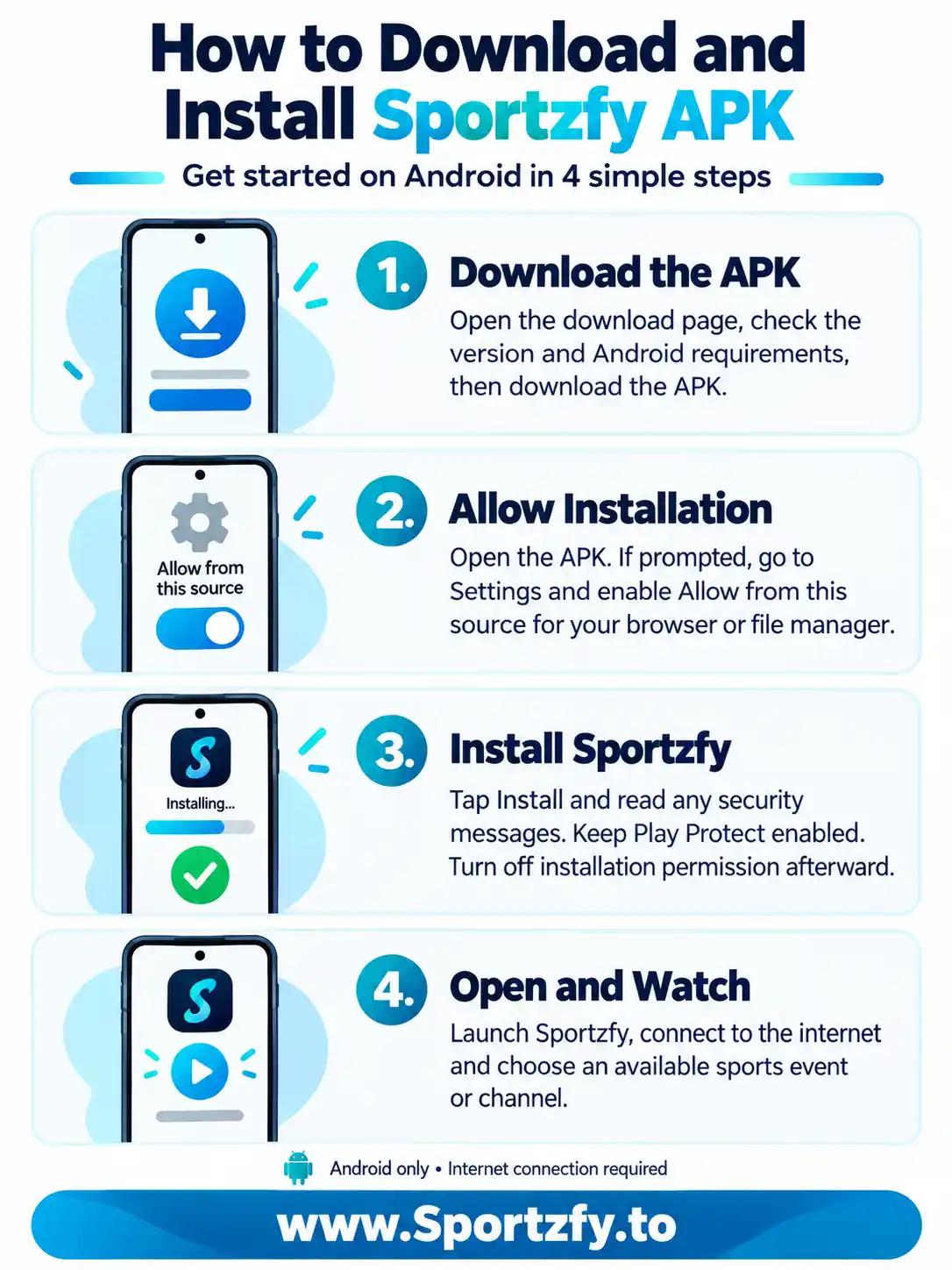
After a successful installation, you can turn off Allow from this source again. You can also delete the downloaded APK to free up storage. Deleting the installation file does not uninstall Sportzfy.
Install Sportzfy on Android TV or Google TV
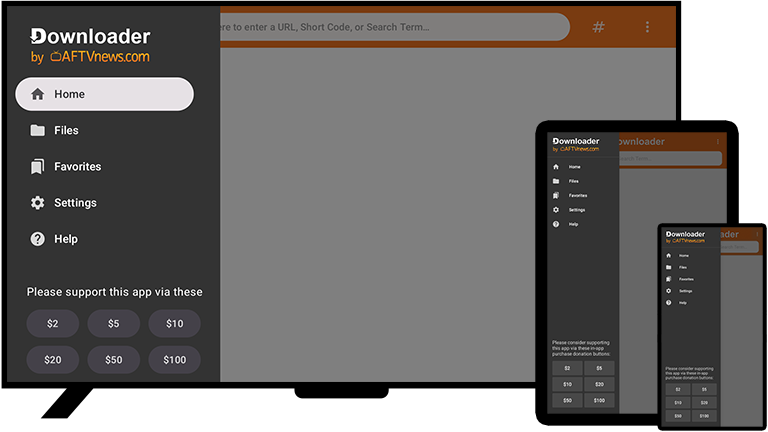
Check that your television or TV box supports Android APK installation. On compatible devices, Downloader by AFTVnews lets you open the download page without typing the full address with your remote.
-
Install Downloader
Search your TV’s app store for Downloader by AFTVnews. If it is available for your device, install and open it.
-
Enter Code 6317031
Select Downloader’s URL field, enter 6317031 and choose Go. If the code does not open, enter https://sportzfy.to/download/ directly.
-
Download and Allow Installation
Select the APK download button on the page. When the download finishes, open the file. If asked, allow Downloader to install apps through your device’s Install unknown apps setting.
-
Install and Choose TV Mode
Return to the file, select Install and review any device warnings. Open Sportzfy when it finishes, choose TV Mode if needed and browse events with your remote.
If Downloader Is Not Available
Transfer the APK from your phone using a file-transfer app supported by both devices, or copy it to a USB drive your TV can read. Open it through the TV’s file manager and allow installation for that app when asked. A compatible TV browser that supports downloads is another option.
For bigger-screen viewing and remote controls, see our Sportzfy for TV guide.
Install Sportzfy on FireStick or Fire TV
This method applies to compatible Android-based Fire TV devices that allow APK installation. Check your model first, as installation support and settings can differ.
-
Open Downloader
Find Downloader by AFTVnews in your device’s app store. Install it if supported, then open it and follow the initial prompts.
-
Get the Sportzfy APK
Enter 6317031 in Downloader and choose Go. Open the linked download page and download the APK completely.
-
Allow Downloader to Install Apps
If installation is blocked, open your Fire TV settings and look for Install unknown apps under the available developer settings. Enable permission for Downloader. The menu location depends on your model and software version.
-
Install and Launch the App
Return to Downloader, open the APK and select Install. Once finished, open Sportzfy, use TV Mode if needed and select an available match or channel.
After setup, you can remove the downloaded APK and switch off Downloader’s installation permission. If your Fire TV device does not support Android APKs, this method will not work.
Install Sportzfy on Windows PC or Mac
Sportzfy does not have a native Windows or Mac app. To run the Android APK on a computer, you need an Android emulator that supports your operating system, processor and the app.
Choose a Compatible Android Emulator
Check the emulator’s official system requirements before downloading. Support can differ between Windows, Intel Macs and Apple silicon Macs. An emulator available for one platform may not support another.
These are options to check, not a guarantee that every emulator or computer configuration will run Sportzfy.
-
Install Your Emulator
Download a suitable emulator from its official website. Follow its setup instructions, then launch it and wait for Android to load.
-
Download Sportzfy APK
Visit the Sportzfy download page through your computer’s browser. Save the completed APK somewhere easy to find, such as Downloads.
-
Import the APK Into the Emulator
Use the emulator’s Install APK option or drag the file into its window if supported. Follow the installation prompts inside the emulator.
-
Open Sportzfy Inside Android
Select the Sportzfy icon from the emulator’s app screen. Allow the listings to load, choose a match or channel and test playback. If performance is poor, review the emulator’s settings and system requirements.
For more setup details, visit our Sportzfy for PC guide.
Can You Install Sportzfy on iPhone or iPad?
No. Sportzfy has no iPhone or iPad app. The Sportzfy APK is made for Android, while Apple’s mobile devices use iOS or iPadOS.
An APK Will Not Install on iOS
Downloading the APK through Safari only saves the file. It does not install Sportzfy or add a working app to your Home Screen.
Renaming the File Will Not Help
Changing .apk to another extension does not convert the Android app into an iOS app. The operating systems use different application formats.
No iOS Download Is Provided Here
This website does not provide a Sportzfy IPA file, iOS installation profile or iPhone download. A page claiming otherwise should not be treated as an installation method from us.
Use a Supported Device Instead
You can use a compatible Android phone, tablet or TV device. A Windows PC or Mac may also work through a compatible Android emulator.
A Mac is different from an iPhone or iPad. The Mac installation method uses a compatible desktop Android emulator; it does not provide an iOS version of Sportzfy.
What About Samsung and LG Smart TVs?
Samsung TVs running Tizen and LG TVs running webOS cannot install the Sportzfy Android APK directly. Copying it to a USB drive or downloading it through the TV’s browser does not change that.
If your television has a suitable HDMI connection, you can connect a compatible Android TV box or Android-based FireStick. Install Sportzfy on that connected device, then use your television for the picture and sound.
Check the operating system under your TV’s About or Device Information settings before choosing a method.
How to Update Sportzfy Without Uninstalling
You can usually install a compatible update over your existing Sportzfy app. This normally keeps your saved settings, so uninstalling does not need to be your first step.
- Close Sportzfy and check the available version on the download page.
- Download the newer APK if an update is available.
- Open it on Android or your TV device. On a computer, import it into the same emulator where Sportzfy is installed.
- Select Update or Install and wait for the process to finish.
- Open Sportzfy and check its version in the app’s settings, if shown.
On a TV using Downloader, enter 6317031 to return to the download page.
If you see a package conflict, check that the APK matches your installed app variant and signing source. Android may reject incompatible updates. Removing the existing app may erase saved settings, so read the error before deciding what to do.
After Installation: Get Ready to Watch
Let the Listings Load
Open Sportzfy with an internet connection. Use All, Live, Upcoming and Recent to browse the available events. Upcoming matches may not have active links yet.
Choose an Available Stream
Open a match and select a working link, or browse the channel categories. Stream availability can change between events.
Adjust Video and Audio
Select a video quality your connection can handle. Where multiple audio tracks are supplied, choose your preferred commentary option.
Start With One Event
Check that a single stream plays steadily before adding more events in Multi Player. Several streams place more demand on your device and connection.
Read the Sportzfy features guide for more about Multi Player, floating playback, player lock and other viewing options.
Sportzfy Installation Problems and Fixes
Start with the exact message shown on your device. A failed download, unsupported device and update conflict need different checks.
The APK Download Stops
Check your connection and free storage. Remove the incomplete file, then download it again. Wait until the browser or Downloader confirms completion before opening it.
The File Will Not Open
Check that you downloaded an APK rather than a webpage. Confirm that you are opening it on a supported Android device or inside an emulator. Renaming another file to .apk will not make it installable.
Installation Permission Is Blocked
Allow installation for the specific app opening the APK. Permission for your browser does not automatically apply to a separate file manager or Downloader.
“App Not Installed” Appears
Check the Android requirement, storage and download completion. If Sportzfy is already installed, a package or signing conflict may be preventing the update.
A Security Warning Appears
Read the full warning and check the file’s source. Keep Play Protect and other available protections enabled. If the file is flagged or its source is uncertain, stop and verify it before continuing.
The App Installs but Will Not Load
Close Sportzfy, restart your device and check whether other apps can access the internet. Try another connection. If the issue continues, it may involve device compatibility or the app’s service.
If a step on this page is unclear or a website link is broken, contact us with the page URL, device model and exact message. We can review our instructions and links, but we do not operate the app’s streaming servers.
Frequently Asked Questions
Do Android phones and TVs use the same APK?
Yes. Sportzfy uses the same APK on Android phones and compatible TV devices. TV Mode is available within the app.
Is Sportzfy available for iPhone?
No. There is no Sportzfy iOS app, and the Android APK cannot be installed on an iPhone or iPad.
Does Sportzfy have a Windows installer or Mac app?
No native Windows or macOS app is provided. Running Sportzfy on a computer requires a compatible Android emulator.
Where do I enter Downloader code 6317031?
Enter the code in the URL field inside Downloader by AFTVnews and select Go. It is not entered inside Sportzfy.
Do I need to turn off Play Protect to install an APK?
Installing an APK does not automatically require turning off Play Protect. Installation permission and Play Protect are separate controls. Keep protection enabled and review any warning about the file.
Can I delete the APK after installation?
Yes. Once installation finishes successfully, you can delete the downloaded APK. This removes the installation file without uninstalling Sportzfy.
Will downloading a newer APK update the app automatically?
No. Downloading saves the file. You must open it and complete the update process on your device or inside your emulator.
Can I install Sportzfy directly on Samsung Tizen or LG webOS?
No. These systems do not install Android APKs directly. A compatible external Android TV device connected through HDMI is an alternative.
Download Sportzfy for Your Supported Device
Check the current file details, download the APK and follow the installation method for your device. Android and compatible TV devices install the APK directly; PC and Mac users need a compatible emulator.
Download Sportzfy APK